

Funnels
Track conversion and time between steps in your mobile app flows, see how they change over time, and find the issues that cause drop-offs.
A funnel is a sequence of custom events that users go through in your app, such as viewing a product, adding it to the cart and placing an order. Measure counts how many users reach each step and how long they take between steps. It also lists the errors, slow traces and network requests that the users who dropped off ran into.
Create a funnel
Open Funnels on the dashboard and create a funnel with a name, its steps and a conversion window.
- Steps are custom events, in the order users are expected to traverse through them. A funnel has between 2 and 30 steps, and an event can be used in more than one step. You can choose each step from the custom events your app sent in the last 30 days.
- Conversion window is how long a user has to get from the first step to the last. It can be between 1 minute and 30 days.
Send the events from your app with trackEvent, as described in Custom events. Funnels are calculated from the events already collected, so a new funnel, or a change to a funnel's steps, also applies to past data.
Owners, admins and developers can create, edit, delete and pin funnels. Viewers can see them.
How users are counted
A user enters the funnel when they send the first step's event, and converts when they send the other steps in order within the conversion window. Other events in between don't affect the funnel. A user who starts the funnel several times in the selected date range is counted once, based on the last step they reached in the funnel. In Trend, a user is counted once in each period they started the funnel in.
Breakdown
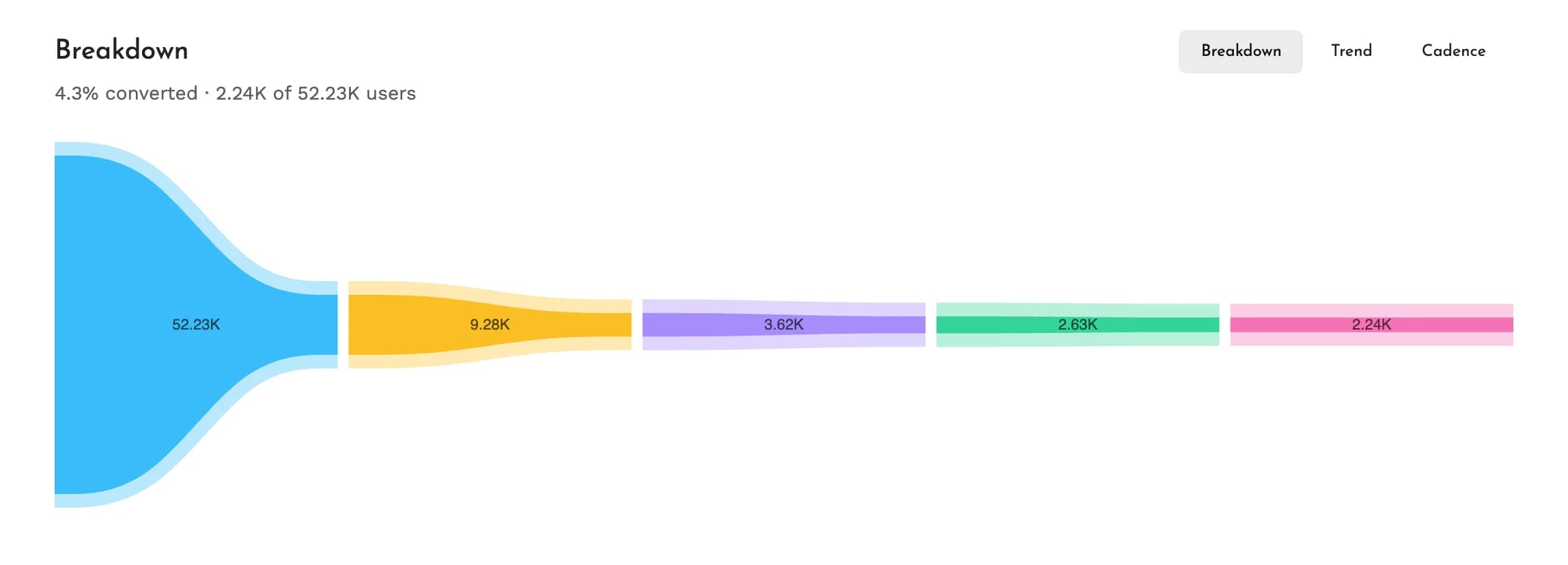
Breakdown shows how many users reached each step in the selected date range. Hover a step to see its conversion from the first step and from the previous step, how many users dropped off before it, and the median time from the previous step.
Trend
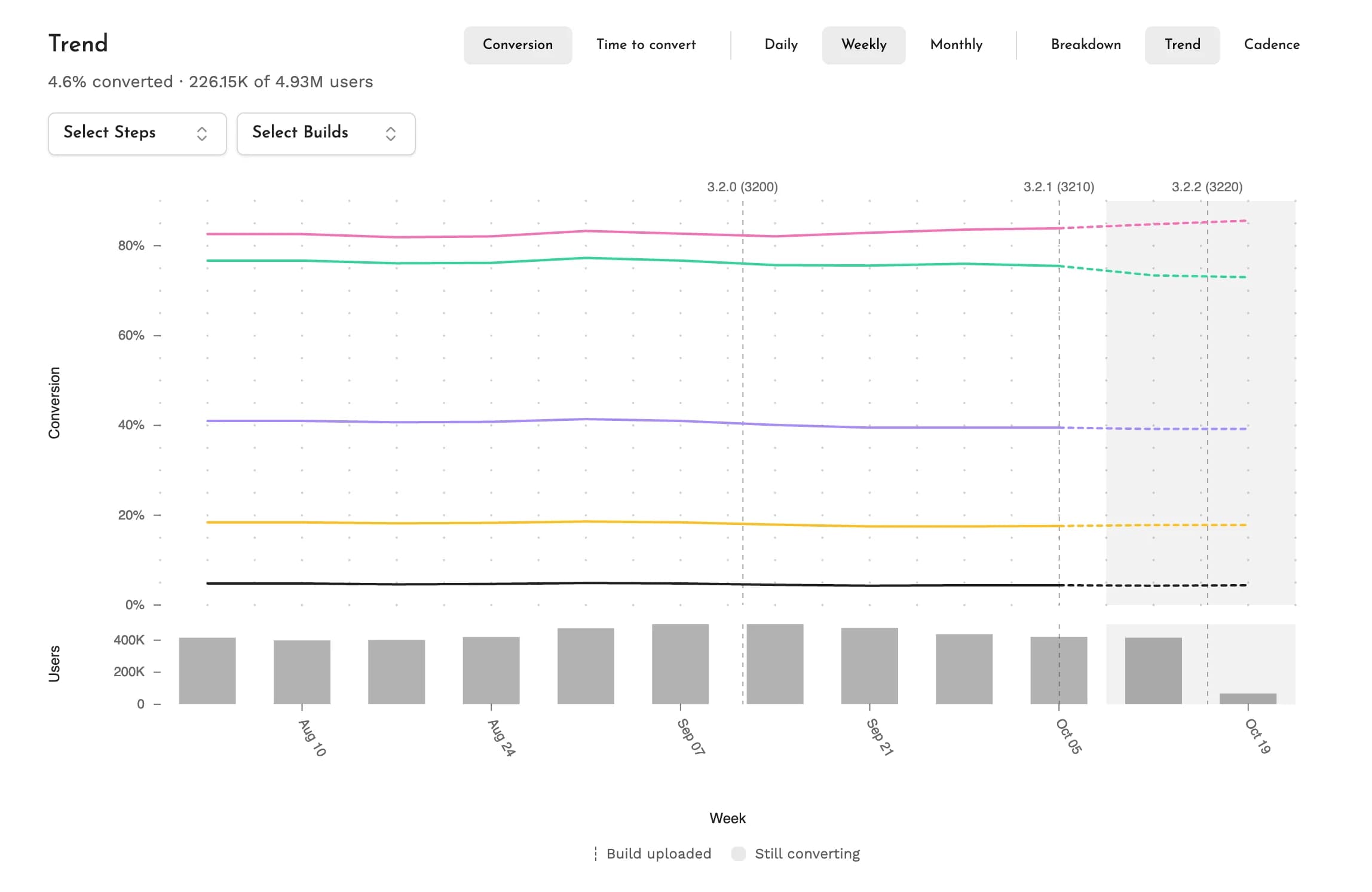
Trend shows the funnel's conversion over the last 30 days, 12 weeks or 12 months. Choose Conversion for the share of users who converted, or Time to convert for the median time from the first step to the last. Lines are shown for each step showing the conversion from the step before it and one for the funnel overall. Users who entered the funnel are shown at the bottom for each period.
Builds uploaded in that time are marked above the plot, so you can see whether conversion changed after a new build. Users who entered in the latest periods can still convert, so a period is shown as still converting until a full conversion window has passed after its last day. For example, with a 1 day window, a week becomes complete at the start of the following Tuesday, once users who entered on Sunday have had a full day to convert.
Click a period to open it in Breakdown.
Cadence
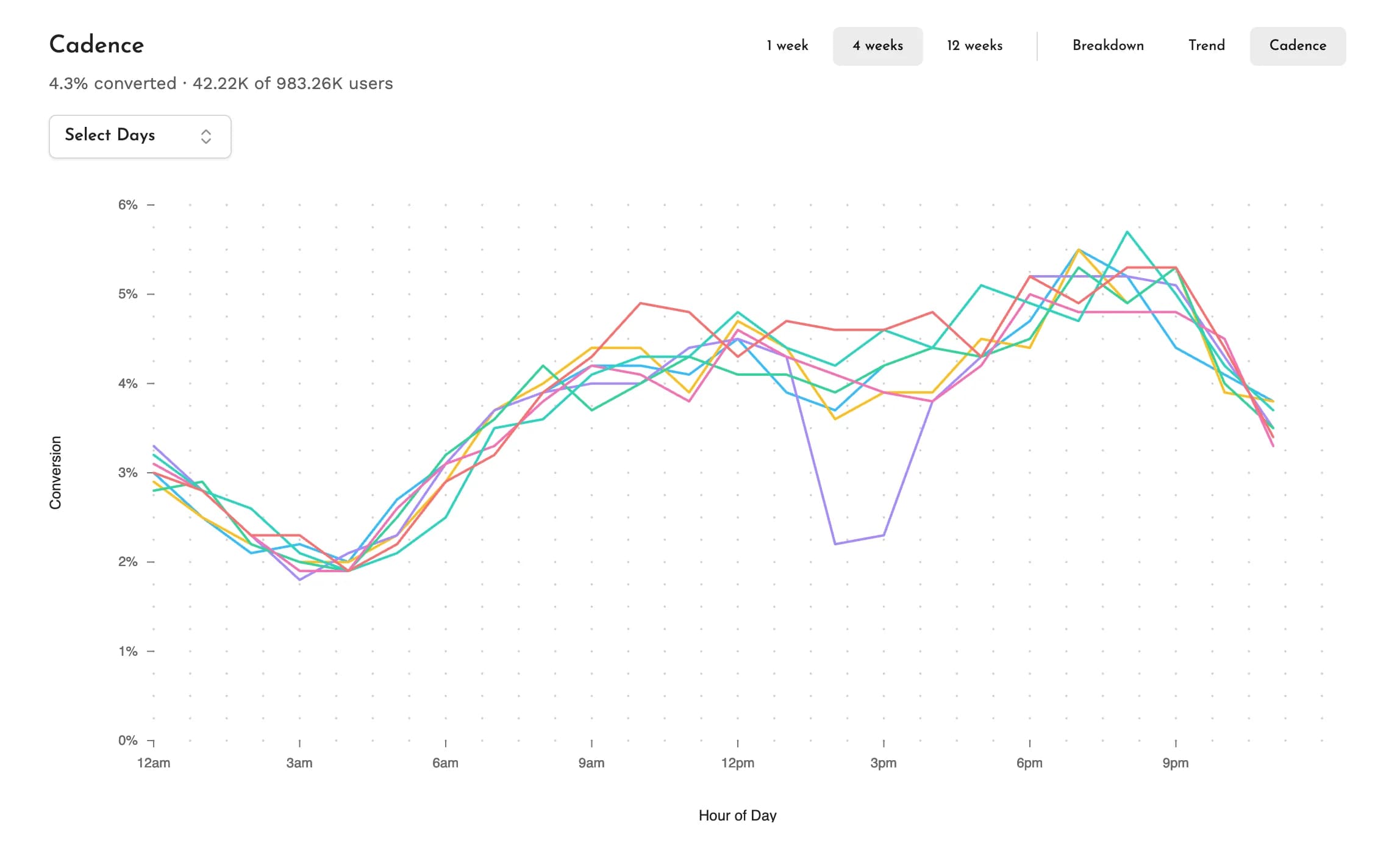
Cadence shows the conversion for each hour of the day, with a line for each weekday, over the last 1, 4 or 12 weeks. Use it to see recurring conversion patterns and notice anomalies. Hours are in your local time zone.
The weeks end at the latest week whose users have all had a full conversion window, so users who can still convert are left out. Click an hour to open it in Breakdown.
Friction
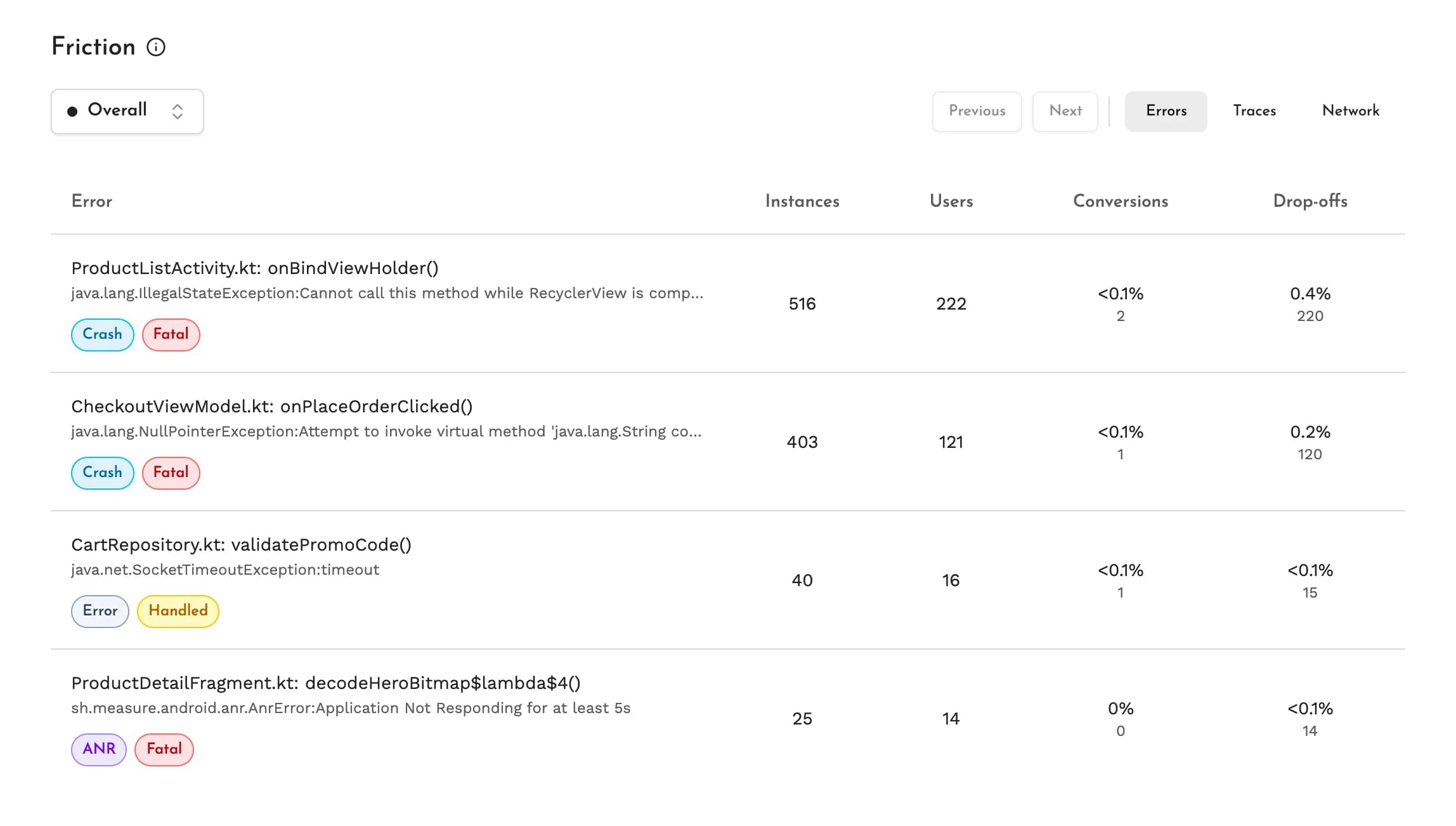
Friction lists what issues users ran into between one step and the next, or across the whole funnel when Overall is selected. It compares the users who converted with those who dropped off. For each user, it covers the time from the selected step until they reach the next one, or until their conversion window runs out.
- Errors lists crashes, ANRs, app hangs and errors, with how many users hit each one and how many of them converted or dropped off.
- Traces lists root spans, with their duration for the users who converted and for those who dropped off. Choose the percentile with p50, p90, p95 or p99.
- Network lists requests by URL pattern, with their latency for the users who converted and for those who dropped off. Requests that took over a minute are left out, since they are usually persistent connections.
The rows are sorted by drop-offs, highest first. Click on a row to open its details page.
Session replays
Session replays lists the sessions of the users who converted, or of those who dropped off, between the selected steps.
A conversion can happen over several sessions. For example, with a 1 day conversion window, a user who adds a product to the cart in the morning and places the order in the evening converts, and both sessions are listed.
Filters
You can filter funnels by app, OS, device, network and location details, or by any custom attributes set in the app. A custom attribute filter matches the funnel's events when the attribute was set anywhere in the same session.
The date range applies to Breakdown, Friction and Session replays. Trend and Cadence cover their own periods.
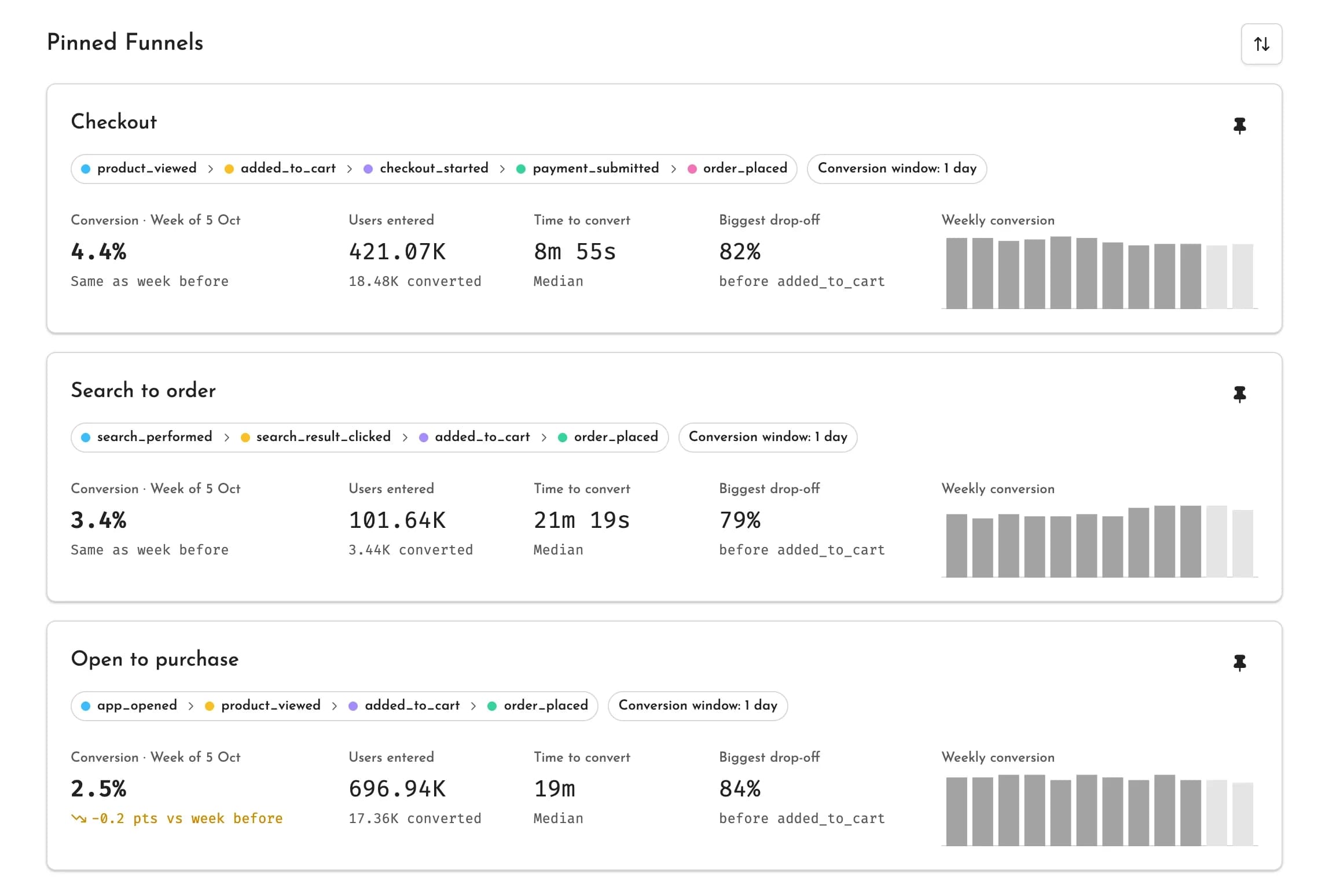
Pinned funnels
You can pin the funnels that are checked frequently to show them at the top of the Funnels page. Each pinned funnel shows its weekly conversion. It also shows these metrics for the last week that has finished converting:
- the conversion, compared with the week before
- the users who entered
- the median time to convert
- the step with the biggest drop-off
Reorder pinned funnels to change the order. Pinned funnels and their order are shared by the whole team.
Funnels over MCP
Coding agents connected to Measure's MCP server can read funnels, their conversion, trend, cadence and friction, and create or edit funnels. See the full tool list.
Think this page can be better?
Open an issue