


Mobile App User Journeys: Learn how users actually use your app
See the paths users take through your app, where they drop off and the issues they run into along the way.

Some of the most useful questions about an app are about what users do next. What do they do after the home screen loads? Where do they go when a search returns no results? Which screens were they on before they dropped off? These are questions about the paths users actually take, and those are often different from the paths the app was designed around.
Users open a product from a deep link and skip the home screen entirely. They go back and forth between the cart and a product page before checking out, or leave checkout to look up shipping costs. Each of these paths can have its own problems, like a screen that loads slowly only when users reach it from search, or a crash that only happens after a particular sequence of steps. Problems like these are hard to spot when you look at screens and errors one at a time.
We rebuilt Journeys in Measure to make these paths visible. A journey shows the screens and events users go through, how many users take each path and where they drop off. For any screen, event or path, it also shows the errors, slow traces, network requests and sessions of the users who progressed through it.
What is a journey?
A journey is a graph of the steps users go through in your app. Each step is a screen, a custom event or a fatal error.
Screens come from Measure's navigation tracking, which records Android activities and fragments and iOS view controllers without any setup. Screens that aren't picked up automatically, like the ones in a custom navigation setup, can be added with trackScreenView, and the actions you care about with trackEvent:
import Measure

Measure.trackScreenView("Checkout", attributes: nil)
Measure.trackEvent(name: "checkout_started", attributes: [:])
Every Measure SDK has equivalent calls, listed in Navigation tracking and Custom events.
When a crash, ANR or app hang ends a session, the session ends in a fatal error step. This shows you which screens and events users were on when the app stopped working for them.
Counting users
Users are counted by app installation. Each user is counted once per screen or event they reach during the selected date range, regardless of how many times they end up there. Consecutive repeats of the same step count only once. For example, a user who searches three times in a row, sending search_performed each time, goes through a single search_performed step.
A connection between two steps is counted only when a user moves directly from one to the other within the same session. If a user closes the app on one screen and returns later on another, no connection is recorded between them.
The graph
The graph lays out screens and custom events as nodes, each with its user count, and draws a link wherever users moved from one step to the next. Hovering a node breaks its count down into users who continued and users who dropped off, along with the median time since the previous step. Hovering a link shows how many users took it.
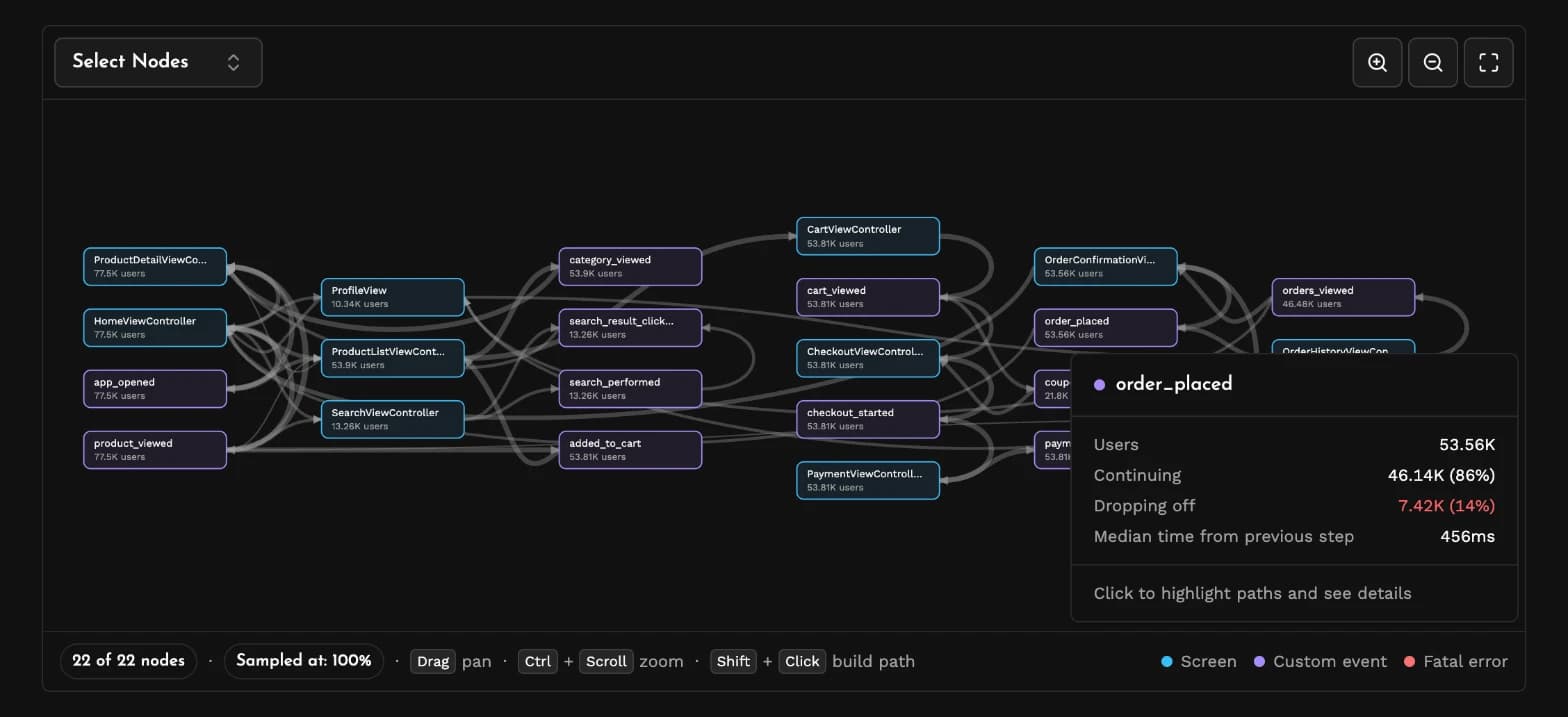
In this shopping app, 77.5K users reached HomeViewController and 53.81K started checkout. Hovering order_placed shows that 7.42K of the 53.56K users who placed an order, 14%, ended their session right after, while the other 46.14K went on to another step. By default, the graph shows the screens and events with the most users, and you can choose which ones to display with Select Nodes.
Paths
A single node shows everything that happened on a screen or after an event. To narrow it down, you can select a link between two steps, or build a path of several steps by selecting the first step and Shift-clicking the next ones.
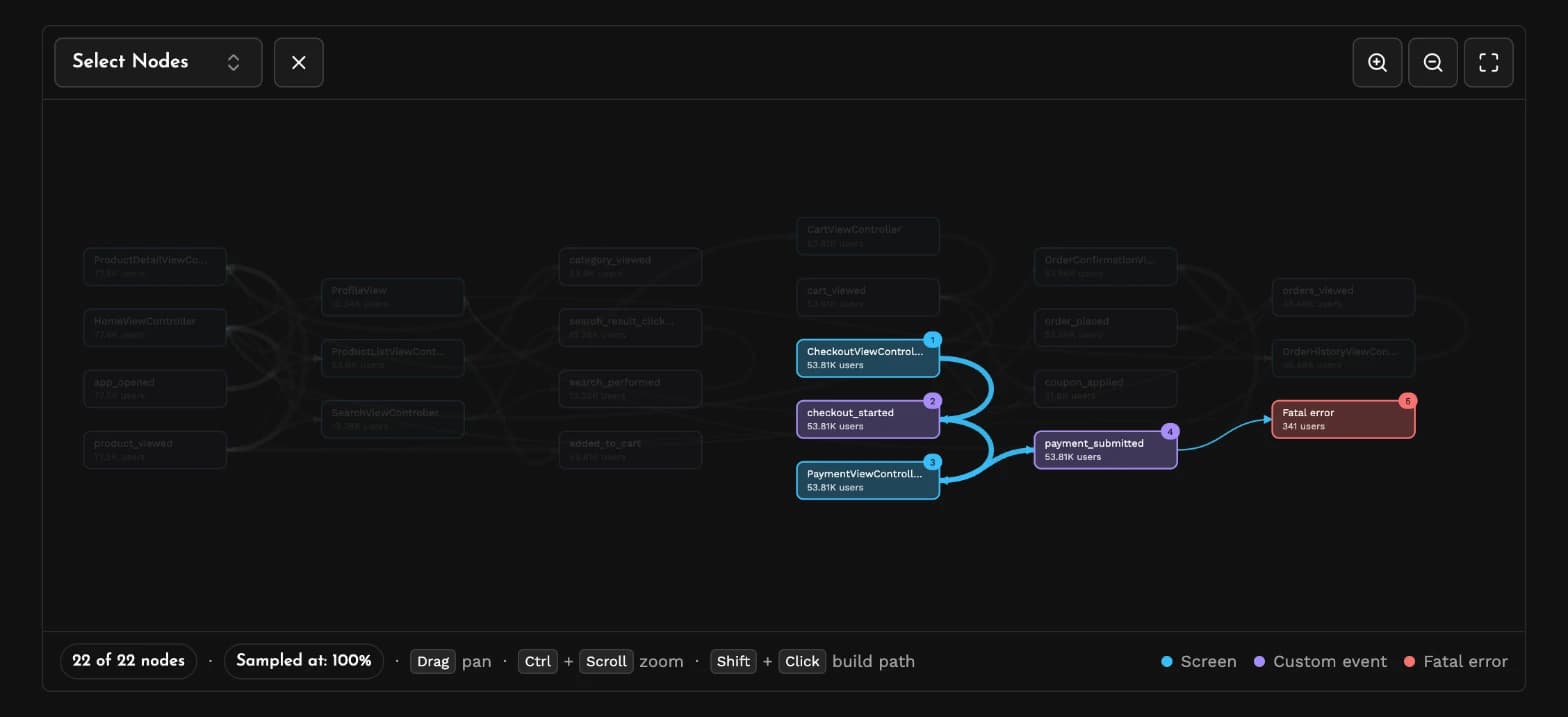
The path above goes from CheckoutViewController through checkout_started, PaymentViewController and payment_submitted, and ends in a fatal error. For each path, Measure shows how many users followed it from start to finish. Here, it's 247 users, or 0.5% of the users who reached CheckoutViewController. That's a small share, but they're users who submitted a payment and didn't get to place their order.
Errors, traces and network
Selecting a node, link or path opens its details below the graph, with three lists of potential issues for users who went through it.
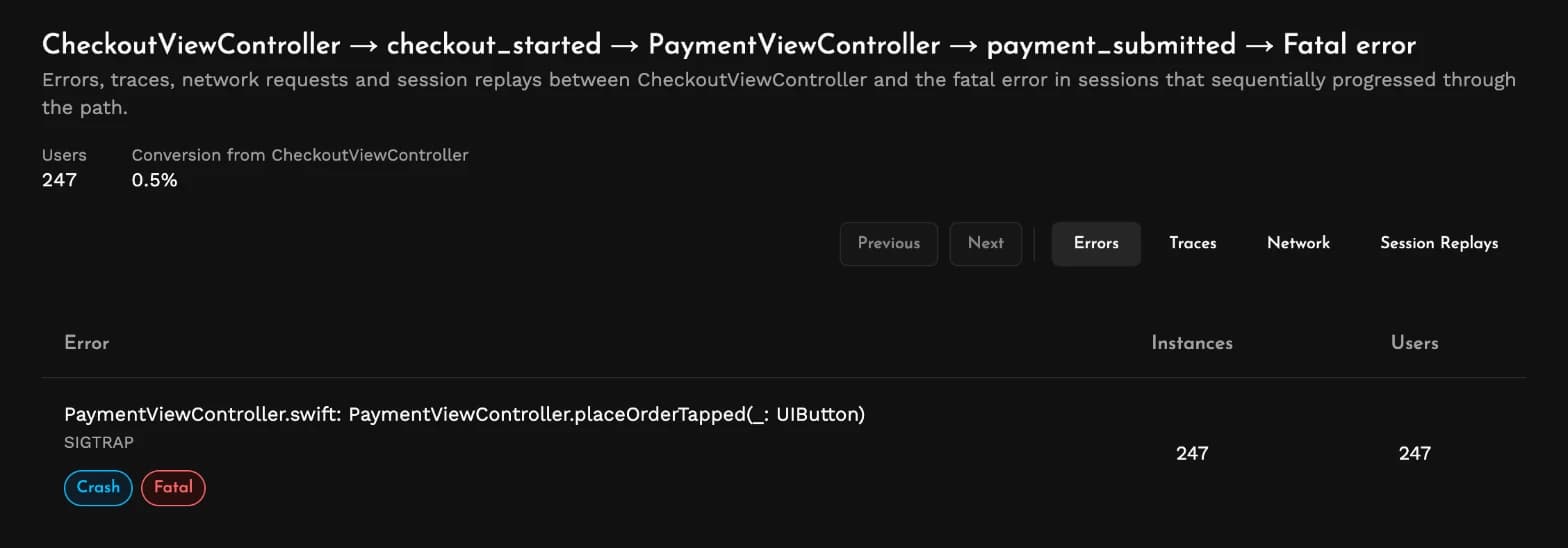
Errors has the crashes, ANRs, app hangs and handled errors in the selection, counted by occurrences and by users. Traces has the root spans that began within, with their durations at the selected percentile. Network groups the requests made in it by URL pattern and shows their latency. Each list is sorted by the number of users affected.
For the path above, all 247 users hit the same crash, a SIGTRAP in PaymentViewController.placeOrderTapped(_:), right after submitting their payment. A SIGTRAP on iOS usually means the Swift runtime stopped the app on purpose, like when a force unwrap finds nil or a precondition fails, and the crash happened inside placeOrderTapped(_:), the action behind the Place order button.
Session Replays
The Session Replays tab lists the sessions behind a node, link or path, and each one opens to a timeline of the user's screens, interactions, requests and errors, next to the app's CPU and memory usage.
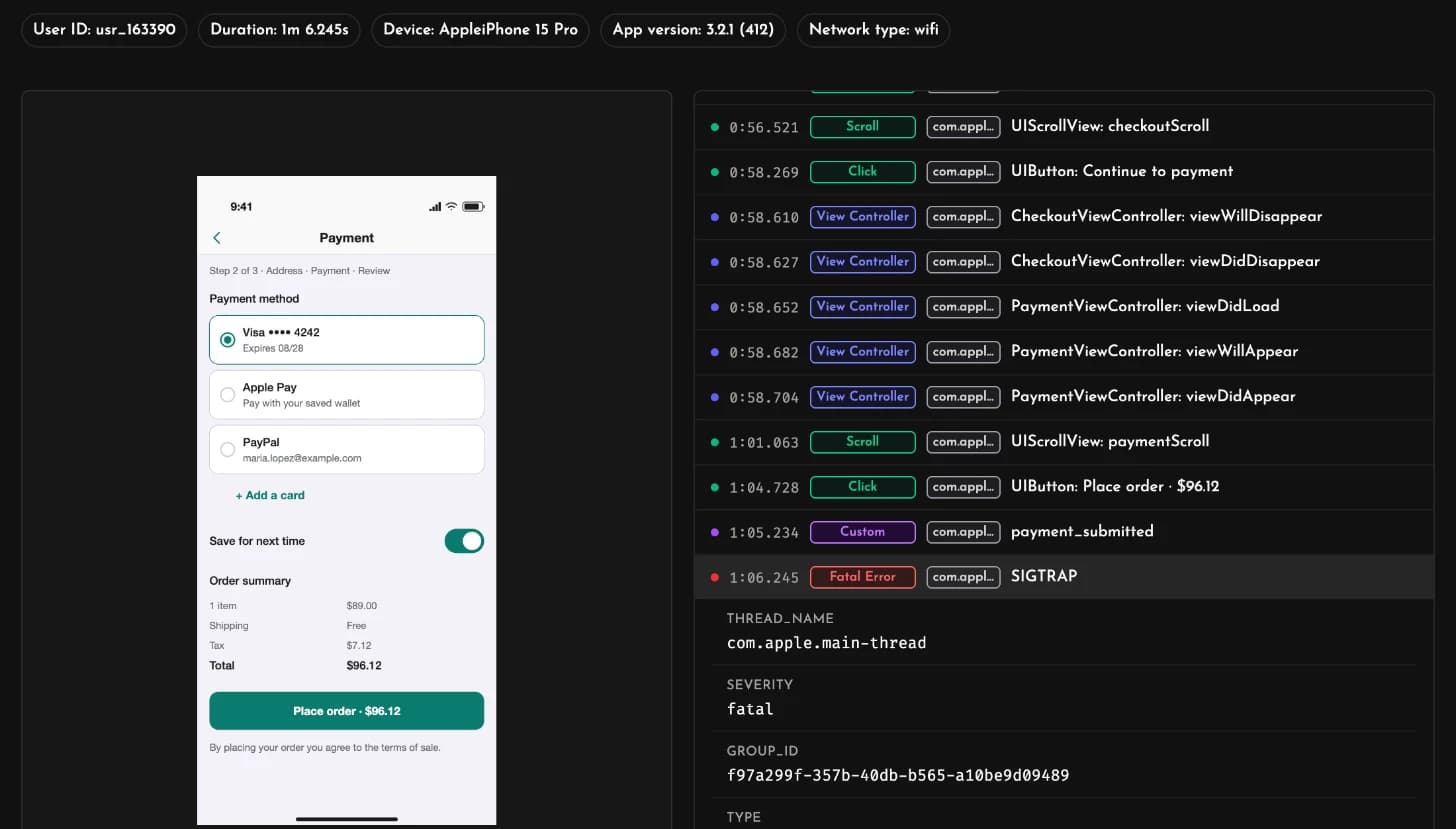
In the session above, the user continued from checkout to the Payment screen, scrolled through it and tapped Place order, and the app crashed about a second and a half later. Watching a handful of replays from the same path tends to surface things that counts can't, like users tapping a button repeatedly or waiting on a loading screen too long before they leave.
Filters
Filters narrow a journey down to a slice of your users, like one app version, an OS version, a device, a network type or a country. Custom attributes work as well, so you can investigate the paths of an experiment group, or look only at users with a feature flag turned on. A custom attribute matches a session when it was set at any point in that session.
Journeys and Funnels
Journeys complement Funnels. A funnel tracks a sequence of steps that you've defined in advance, like an onboarding or a checkout flow, and shows how its conversion changes over time. A journey shows the paths users actually take, including the ones you didn't plan for.
The two work well together. A path you find in a journey, like users going from search results straight to the cart, can become a funnel that your team tracks across releases.
Journeys over MCP
Journeys are also available to coding agents through Measure's MCP server. An agent can read the graph, find the users who followed a path, and pull the errors, traces, network requests and sessions for any node or path. Asking it where users go after leaving the checkout screen, for example, gets you the paths they took and their potential issues, which the agent can then trace back to your code.
Getting started
Journeys work with all of Measure's SDKs. Navigation tracking describes which screens are recorded on each platform, and you can add trackScreenView or trackEvent calls for any other screens or actions you'd like to see as steps. The Journeys docs cover sampling, filters and how each count is calculated.
To see Journeys with sample data first, you can have a look at the interactive demo.
FAQ
What is a user journey in a mobile app?
A user journey is the route a user takes through an app, screen by screen and action by action, like opening the home screen, viewing a product and adding it to the cart. Putting the journeys of many users together shows which routes are common, which ones run into errors, and where users leave.
How do I track user journeys in my Android, iOS, Flutter, React Native or Kotlin Multiplatform app?
Add the Measure SDK to your app. Measure records screens through its navigation tracking, and you can track other screens with trackScreenView and actions with trackEvent.
What's the difference between a user journey and a funnel?
A funnel tracks a sequence of steps that you define in advance and measures how many users complete it. A journey shows all the paths users take through the app, including the ones you didn't define, so you can discover patterns and issues that a funnel might miss.
How do I find out what users did before a crash?
Select the fatal error node, or build a path that ends in it, to see the steps users took before the crash. The errors list tells you which crash it was, and the session replays for the path show each user's screens, interactions and requests leading up to it.